
How to Install Java | Windows JDK Setup
We are going to learn how to install Java on this page. For programming, install the Java Development Kit (JDK), which includes the compiler and runtime. Choose a supported version that fits your course or project, rather than downloading an old runtime just because its name says Java. You don’t wanna be left behind in that race to ace technology? Now do you?
How to Install Java: Before We Start
You have no idea how hard I have tried my luck at learning Java. It swings me back in time whenever I think about it. I shudder at the very thought of it. Twice, thrice, I can’t even remember how many times now. Once I had managed a certificate too, but then two or three months down the line, when there were no real projects to work on, I forgot everything that I had learnt. Java does that to you. Oh wait! That’s life. Life does that to you.
This meme never gets old:

You wouldn’t believe it if I told you I had just the right motivator who had almost taught me how to do stuff in Java. He even came up with a ppt, which is busy playing lost in some folders on my laptop. It was easy enough to make anyone understand what Java is all about. What Core Java is, and how to master the basics of it.
Well don’t worry! My lessons are going to be dead simple. You will be thanking me, hell, I will be thanking me for making things easier for me, you and the posterity to get.
How complex it all seems, but trust me nothing in this life is complex. It is just our indifference towards it, that creates such an impression. Look at it this way: How many Java programmers are there in the world? Well I guess, millions? If they could do it, so can you. They are humans too just like you. Oooh! That rhymed!
We shall first learn how to install Java and then take baby steps into learning all about how to code in it.
What is Java all about?
This brings us to the boring part, which I choose to skip. But I am afraid, for people who are more interested in knowing the primal step, before proceeding to learn how to install java and start learning all about it, learning the definition is equally important. It comes straight from the book.
Java is a programming language. Period. Easy enough for you?
Why is it so cool? Java programs run through a compatible Java runtime, available for many operating systems. That gives the language useful portability, although operating-system features, native libraries and the Java version still matter. This walkthrough uses Windows; the same installer file does not work on every platform.
It is easy to master, that explains why I chose to make tutorials for it. 😛
It is also Object-Oriented owing to the beautiful concept of classes, a topic we will return to after our first program.
How to Install Java: Primary Check
This brings us to the fun part, where we actually get to do something. Theories are so boring! I know!
Well, to start working on Java you need it installed on your system first. A quick check if it is already there:
- Press Windows + R to open the Run Dialog box.
- Type cmd and press Enter (You can also access it via Start>Accessories)
- When Command Prompt prompts you, type the following command:
java -version
- Press Enter
If the result you get looks something like this (do not focus on detailing as versions could be different):

It means a Java runtime was found. It does not prove that the compiler is installed, that the version is suitable, or that your terminal selected the JDK you intended. The screenshot shows an old Java version; use it only to recognise the kind of output.
Also run javac -version. If either command is missing or the versions are unsuitable for your project, follow the installation and PATH checks below.
How to Install Java: Download and Install the JDK
To spoon feed you I have decided to guide you with the process of installing Java on your system. Walk alongside and you shall be able to cross the river “just in time”. 😉
Step 1: The first step is downloading a supported JDK from the official Oracle Java website. Modern JDK distributions include the runtime needed to develop and run these examples; you do not need a separate consumer JRE installation. Here’s the link to do so:
The link takes you to Oracle’s official downloads and books you a date with Java. Choose the JDK release your project needs; a supported LTS release is a sensible starting point for learning. The screenshots below show older download pages, so follow the current product and platform labels rather than their exact layout:

Choose your JDK release, then open its Windows downloads.
Step 2: Check your Windows system type in Settings → System → About. Match the download to your operating system and processor architecture. For a supported Intel/AMD 64-bit Windows PC, choose the Windows x64 installer, not the Linux or macOS archive.

My walkthrough uses 64-bit Windows on an Intel/AMD processor. Other architectures need a JDK build that explicitly supports them.
Step 3: Review the download terms for your selected JDK and intended use. An account or licence prompt may depend on the release; the old screenshot is not a promise that every download follows identical steps.
When you do, your downloading should start as well.
Step 4: Run the downloaded installer and follow its prompts. Familiar territory if you have installed games, but do read the destination and options before clicking Next. Record the actual JDK folder it creates; the old folder names in this screenshot are examples:
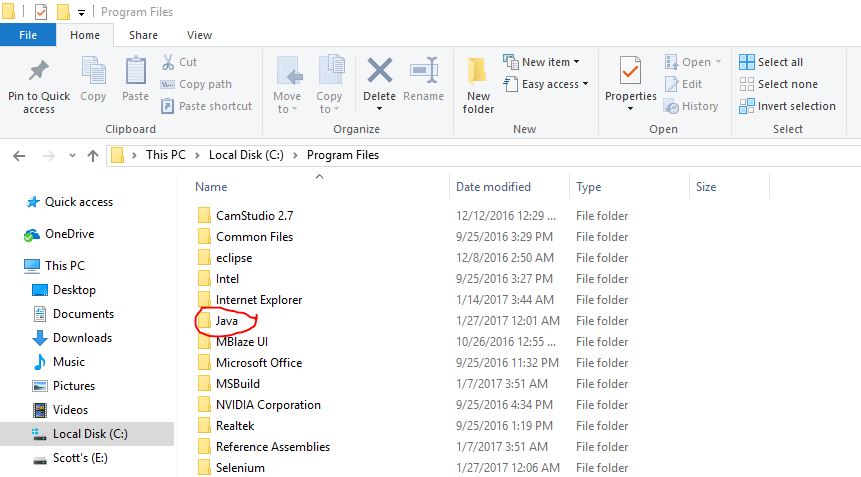
Setting up Environment Variables
Downloading the installer does not finish the job. First open a new Command Prompt and try java -version and javac -version; your installer may already have configured command access. If both find the intended JDK, skip manual PATH editing and move to the program check. Otherwise, the next step in how to install Java is telling Windows where its tools live.
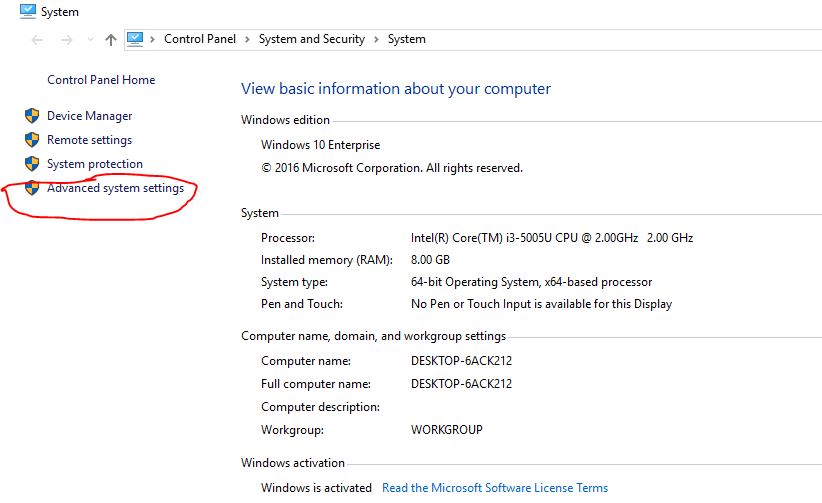
Step 5: Open Start, search for “Edit the system environment variables”, and open the matching System Properties control. The older Control Panel route in these screenshots leads to the same settings.
Choose Advanced system settings if you reached the System information page first.
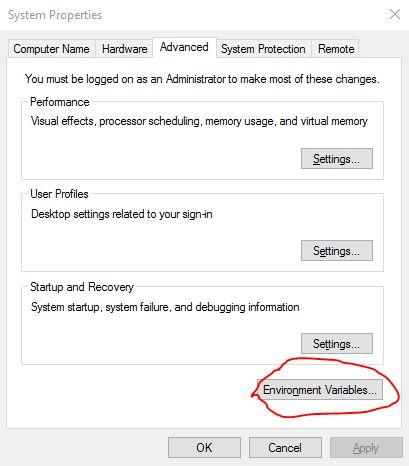
Step 6: In System Properties, select Environment Variables.
Well, you get what you asked for: the Environment Variables box opens. The historical screenshot below shows both user and system settings.
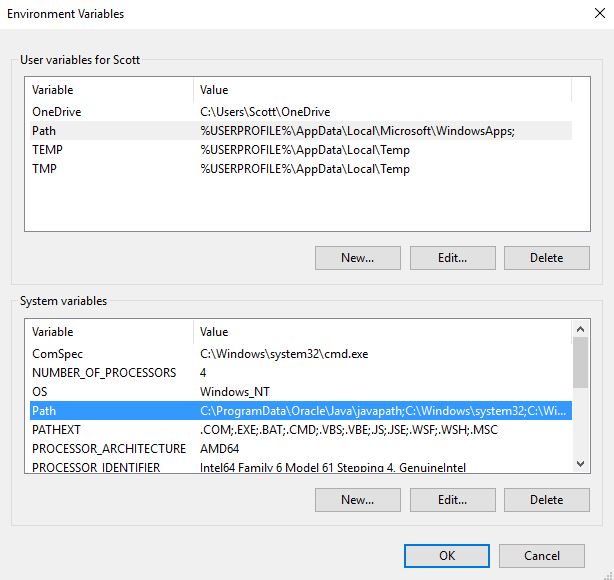
Step 7: For your own account, find Path under User variables and choose Edit. System variables apply more widely and may require administrator access. Keep the existing entries: you are adding a Java tool location, not replacing the whole PATH.
Open the JDK installation folder recorded in Step 4, then its bin folder. Confirm that it contains java.exe and javac.exe. Copy that folder’s actual path; do not copy the old version number from this screenshot.

Step 8: Choose New in the Path editor and add the JDK’s bin directory as a separate entry. Some build tools also need JAVA_HOME: if required, set it to the JDK’s root directory, without bin. You can then use %JAVA_HOME%\bin as the Path entry instead of a second hard-coded copy.
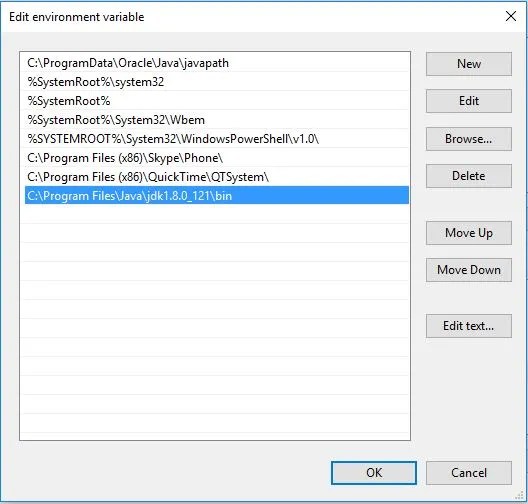
Step 9: Confirm each dialog with OK, then close the old terminal and open a new one. Existing terminal sessions do not automatically inherit the environment changes.
How to Install Java: Verify the Tools
How do you ensure that Java has been installed on your system?
Well, that takes us to the final step of verification.
Step 10: Open the command prompt once again, and type the following once again before pressing Enter:
java -version
You should see version information. Also run javac -version and confirm that both tools belong to the intended JDK. This old output is an illustration, not the version you should install:
This means the runtime command is reachable. Once the compiler check also succeeds, your development tools are in there. Mission almost accomplished: let’s run one tiny program.
You have successfully learnt how to install Java. It is time to start learning all about how to do coding. Bear with me and we shall walk on that cloud too. Like they say, one step at a time.
Go ahead take some rest. You did good soldier. Leave that work for tomorrow. Procrastinate! Nothing wrong with that.
Compile a Tiny Test Program
Create an empty practice folder, then save the following text as HelloWorld.java. Show file extensions in File Explorer so it does not accidentally become HelloWorld.java.txt. The public class name and filename must match, including their capital letters.
public class HelloWorld {
    public static void main(String[] args) {
        System.out.println("Hello, Java!");
    }
}
Open Command Prompt in that practice folder. Run these two commands in order:
javac HelloWorld.java
java HelloWorld
The compiler creates HelloWorld.class. The second command should print Hello, Java!. If you see that line, you have checked more than an installer’s success message: the compiler and runtime can work together. Next, continue with our first Java program tutorial.
Troubleshooting the Java Setup
If a command is not recognised, confirm that the JDK is installed and reopen Command Prompt after changing PATH. If java works but javac does not, you may be finding a runtime-only installation or a different Java directory. Run where.exe java and where.exe javac to see the matching paths; the first match is normally the one selected. Review Java-specific entries if an older installation wins, while preserving entries needed by other programs.
If compilation succeeds but execution reports an unsupported class version, the runtime may be older than the compiler. Select compatible tools from the intended JDK and try again. If the class cannot be found, run from the folder containing HelloWorld.class and use java HelloWorld, without a .class suffix. Small steps, soldier. The error message is a clue, not a verdict on your ability.


6 Responses
[…] I hope you are walking the way I am, following the right way. That being said, before learning your first java program and doing the java demo program I would like you to read the first chapter of Java. […]
[…] hope you have Java installed on your system already. If you haven’t then you can read our Java Chapter that teaches you how to do that first. Please install Java ASAP before proceeding, since our future interactions are going to be […]
[…] Java installed on your system […]
[…] to have Java installed on your system. If you don’t have that you can always flip back to check how to do that and ensure if Java is indeed […]
[…] adding browser libraries, follow our Java installation guide and check that your compiler and runtime work. Then build one small test: open a practice page, […]
[…] We are taking this journey one step at a time. Before writing your first Java demo program, read the first chapter of Java. […]