
Java Demo Program | Compile and Run Your First Class
We are taking this journey one step at a time. Before writing your first Java demo program, read the first chapter of Java.
If you have already sailed on that ship, let’s move forward and see what Java has in store for us.
Understanding a Java Demo Program
I know it is confusing when you look at lots of code and wonder if you will ever get there. A kind of gibberish that makes you want to turn away. Just look at Java as French or Spanish, a language you have not learnt yet. Or even better try to relate to it as an alien language like that in the movie Arrival.
Now you don’t know how to read, write or interpret it, but it is there, and it is getting the job done. Aliens are talking to each other, all you need to do is learn to speak their language even though it takes you months or years to become really efficient at it. No problemo!
When you see a familiar symbol, why does your mind recognise it? Because you learnt it early on and now recognise it almost unconsciously. Java has familiar-looking words too, but they have precise meanings. For example, && is a short-circuit logical AND; & has different uses, including bitwise AND. Recognising a symbol is a beginning, not a substitute for learning its rules. There are just some terminologies that your mind needs to register. When you do, trust me you will begin talking to your Mom in Java. But please don’t.
I hate to mug things up because I believe learning can’t be forced. But with languages you are left with no options but to con, because that’s what you need to interact with computers. If you speak English and expect your computer to respond, it would just sit there wondering how dumb you are.
Process of Programming in Java
For this conventional command-line example, we will follow three useful stages.
- Creation: This is where we are going to write a program in a notepad file and save it into a java extension file format. Our files are gonna look like: myProgram.java
- Compilation: Whatever code you have written needs to be compiled to check the source and produce class files; successful compilation does not prove that a program has no logical mistakes. Java automatically generates a “.class” file as you compile it using the ‘javac‘ command. It is also known as bytecode.
- Execution: The compiled .class file needs to be then executed. You need a JVM (Java Virtual Machine) for that. Don’t worry you have it with you already when you downloaded the Java kit.
It is here where the concept of Java being a cross platform language comes into picture. You can often run the same bytecode on another operating system when it has a compatible JVM and the dependencies your program needs. A newer class-file version may not run on an older JVM, and native libraries or operating-system assumptions can affect portability. Isn’t that beautiful?
Share the bytecode with your Hobbit friend in New Jersey who uses macOS, and ask him to try it with a compatible JVM. Sounds good?
We will explore these ideas a little more deeply as we begin writing programs.
Java Demo Program
You want to say Hi to the world? Let’s get that out of the way first. Getting your system to talk or here print is I guess one of the best feelings in the world. It means the system understands you, and more importantly you understand it. You are in perfect sync with it.
Our aim is to print Hello World and announce that we are here.
To do that let’s just split the work into steps. Steps make things so easy, I know! You get to rest once in a while, get up for a beer, and then come back to start from where you left off. Here are those steps to write your first java program.
So without wasting any more time let’s start by writing your first java demo program in notepad. We will learn what’s what as we proceed.
Check the Tools Before Starting
Run java -version and javac -version in a new Command Prompt window. Both should respond. If javac is not recognised, revisit the linked JDK installation guide before trying to compile. The old screenshots below illustrate the workflow, not a Java release you should install today. Use a separate practice folder so the source and class files are easy to find.
Write and Save the Java Demo Program
Did you make a separate folder for this? You didn’t? Please do. The last thing you want is a hotchpotch of practice files.
Step 1: Create a new plain-text document in Notepad. Copy the complete program below; the screenshot is a visual reference, not the only source for the code.
public class Chimera {
    public static void main(String[] args) {
        System.out.println("Hello World");
    }
}
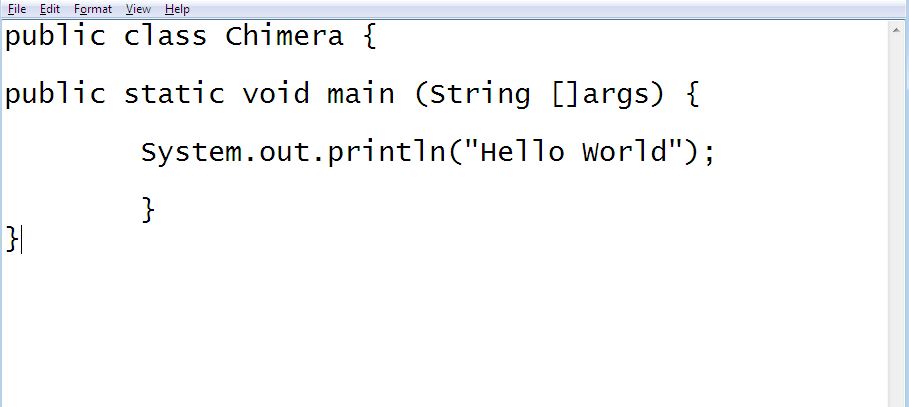
Step 2: Once you are past that you need to move on to the next step of compilation. To do that you need to save the file in a format Java gets. Save it as Chimera.java. In Notepad’s Save As dialog, choose All files rather than Text documents and use UTF-8. Show file extensions in File Explorer and check that it is not Chimera.java.txt. The public class name and filename must match, including case. Gotta stay cool, huh?

Step 3: Open Command Prompt. You can do that using Windows + R key and typing cmd and pressing Enter.

Step 4: Now if you are new to Windows Command Prompt you might have to learn how to navigate inside and outside the folder. Or the best way to avoid that would be to simply copy the path of the folder where your file is actually located. Then proceed to Command Prompt, and type
cd "path"
where path denotes what you copied. For my case it is “D:\Java”
In Command Prompt, cd /d "D:\Java" changes both the drive and directory. Replace that example with your own existing folder. The original two-command method shown below also works; it is useful to understand what the screenshot is doing.
So what I am going to do is type
D:
first to navigate to the drive where my file is located and press Enter.

Then immediately type cd followed by my path. So my command would look like:
cd /d "D:\Java"
That means I am in the folder named Java where my file Chimera.java sits.
Compile the Java Demo Program
Step 5: Next step is compilation. To do that use the following command.
javac Chimera.java
Use the actual source filename, Chimera.java, then press Enter. You can also read Oracle’s javac command reference for the compiler’s options.

When you press Enter you will notice nothing happens, (provided you haven’t made any mistakes). But when you will navigate back to your folder you will notice that another file with the same name yet different extension has been created out of thin air.

It has an extension of “.class”. Yes it’s that java bytecode that I had been ranting about in the earlier section. A compatible JVM can execute that bytecode. Java’s portability depends on compatible class-file versions and dependencies, rather than a promise that every program works unchanged everywhere.
Now since you already have that installed we will go for the final process of Execution.
Run the Java Demo Program
Step 6: Type java followed by the class name. Here the command would look something like this:
java Chimera
Use the class name Chimera, without .java or .class, while in the folder containing Chimera.class. Then press Enter.
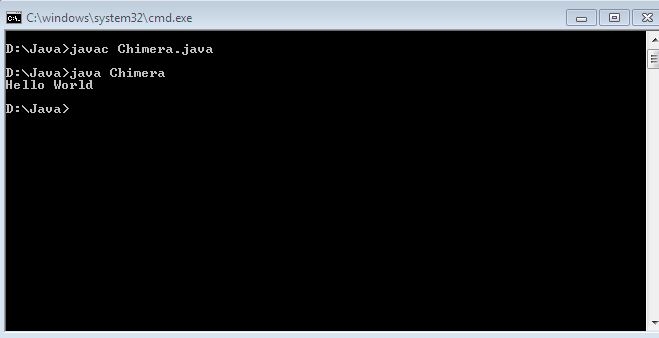
The moment you do you will have a black screen shouting “Hello World” at you. There! Your job’s done. Your first Java demo program is over just like that.
Breaking Down the First Java Demo Program
At first, what you wrote may have felt like jargon you did not understand. To break it down and help you understand I will make sure that I cover them all in the upcoming chapters. The only thing you need to remember with the hello world program is that the following command:
System.out.println("Hello World");prints the supplied text and then a line separator. With no argument, println() prints only a line separator. This method-call statement ends with a semicolon; not every line of Java does. Class and method declarations use braces. A missing statement semicolon can cause a compile-time error message. Java is case-sensitive: write System with a capital S and out.println in lowercase, as shown.
Then there is that line that says:
public static void main (String []args) {Use this conventional public static void main(String[] args) form for the example. You do not need to understand every keyword immediately, but you do not put this method into every class you write. Libraries and other classes can serve different purposes. We will explore the pieces as we go.
For this standalone class-based launch, main is the application entry method selected by the Java launcher. It is not a rule that every class needs one. Initialisation can run before it, and larger programs can have other threads or different hosting arrangements. In this tiny example, the flow is simple:
- The statement inside main prints our greeting.
- After that statement, main returns and this simple application finishes.
Java is case-sensitive: the name here is main, not Main. Later, you can call other methods from it rather than placing all your work in one block.
Access Modifiers
The keyword public in the above example is nothing but an access modifier. Access modifiers in Java are used to regulate access visibility meaning whether a class or its data members can be accessed by other classes or not. We can use the relevant access modifier to establish that. For ordinary class members, the basic access levels are:
- public
- protected
- package-private (no access modifier)
- private
Here is the original overview image. Treat its “default” label as package-private access, not a keyword you type. Protected access across packages has additional subclass rules; a summary chart is not the complete language specification.

Remember while working with inheritance access control follows certain rules.
For instance, if you have declared a method as public in superclass, an overriding method in a subclass must remain public. An overriding method cannot make access more restrictive. Methods declared as protected in a superclass must remain protected or become public when overridden.
For an ordinary class member, omitting an access modifier gives package-private access. Do not write default as its access modifier. Top-level classes can be public or package-private; protected and private are available for member classes, not top-level classes. Interfaces have their own rules, which we will cover separately.
Remaining Part of the Code
The static keyword makes this a class method. The launcher does not need to create a Chimera object to call this main method. For more detail, read the static chapter out.
The keyword void means that this method returns no value. It is not a primitive data type or a value you return. A method that does return a value declares an appropriate primitive or reference type instead.
String[] args declares a parameter whose type is an array of strings. String is not the return type of this main method; void is its result declaration. The launcher supplies the command-line arguments through the array.
Meaning if you pass a command on the console as:
java Chimera one two three four
The args array receives one in args[0], two in args[1], three in args[2] and four in args[3]. The greeting-only program above does not read those values, so it still prints just Hello World. Supplying arguments does not automatically display them.
And then, of course, never forget to follow the primal rule of programming:
What opens, always closes. What has closed must have been opened.
Holds true here as well. It is just that here we have braces ‘{‘ and ‘}’ to deal with.
Troubleshooting the First Run
If javac reports “file not found”, check the current folder and the real filename, including a possible hidden .txt suffix. If the class name must match the filename, compare public class Chimera with Chimera.java. If the launcher cannot find the main class, confirm that Chimera.class exists in the current folder and try java -cp . Chimera. That explicitly uses the current folder as the class path.
An unsupported class-version error normally means the runtime is older than the compiler’s target. Check both version commands and select compatible tools. The compilation and launch commands here were tested with Temurin JDK 21.0.8 on macOS. The Windows folder-navigation steps were checked against Microsoft’s documentation; this is not a claim that a Windows installation was performed.
Your First Run Is Complete
You have successfully compiled and run your first Java program. All there is to it is coding, compilation and execution. But it doesn’t end there. The story has just begun, my dear friend. We will get there one step at a time.
Revel in the glory of your first successful java demo program run. Go grab a beer!


how do i go to the next post of this blog?:)
I have created a separate widget in the left sidebar. All Java-related tutorials are under one section. You can navigate chapter wise now. 🙂
– Scottshak
Open Java category in a separate page, and keep navigating to the next page till you reach the very first post 🙂